
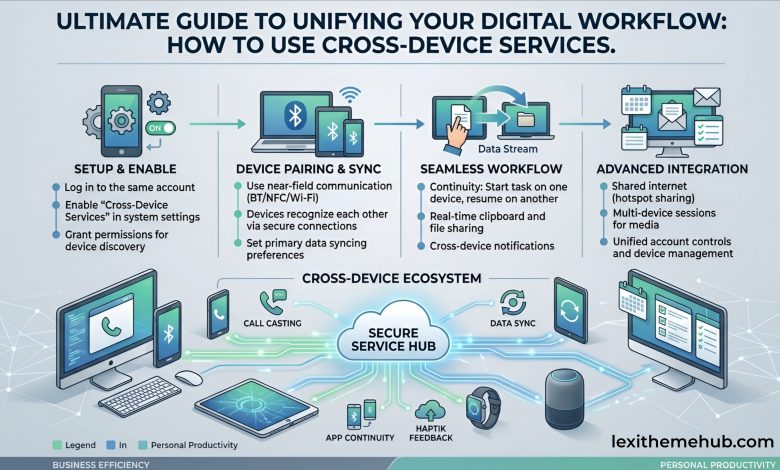
In today’s connected world, cross-device services on Android are essential for anyone who wants to work smarter, stay organized, and improve productivity. Whether you’re a business owner, student, or content creator, learning how to connect and sync your devices can transform the way you use technology daily.
Cross-device services allow your Android smartphone to communicate and sync with other devices such as tablets, laptops, and smart TVs. This means you can share files, receive notifications, and continue tasks across multiple devices without interruption. These features are powered by built-in Android tools and cloud-based platforms, making them easy to use without advanced technical knowledge.Benefits of Using Cross-Device Services
Using cross-device features offers several advantages:- Improved Productivity: Work across devices without starting over
- Instant File Sharing: Send documents, images, and videos quickly
- Real-Time Access: View messages, emails, and apps anywhere
- Better Organization: Keep everything synced in one ecosystem
How to Enable Cross-Device Services on Android
1. Sync Your Google Account Start by connecting all your devices to the same account:- Open Settings
- Tap Accounts > Google
- Turn on sync for contacts, Gmail, Drive, and more
- Open Settings
- Tap Accounts > Google
- Click on All Services
- Select Cross-device services
- Enable Cross-device services
- Go to Settings
- Tap Google > Devices & Sharing
- Enable Nearby Share
- Set your device visibility
- Install Link to Windows on your phone
- Open the Phone Link app on your PC
- Sign in with the same Microsoft account
- Follow the pairing steps
- Upload files to cloud storage from your phone
- Access them on any device with internet
Best Practices for Maximum Performance
To get the most out of cross-device services:- Keep your Android device updated
- Use stable internet connections
- Turn on Bluetooth and location services
- Regularly organize your files for easy syncing





Useful tips